Share Transfer to NSDL: Online via CDSL Easiest
- Updated: 22 May 2026, 5:16 PM IST
- | 4 min read
- 2,527
 Add Preferred News Source
If your current broker is on CDSL and Kotak Neo is on NSDL, it’s called an inter-depository transfer. You can do this offline or via CDSL Easiest (online), but offline is simpler for most users.
⚠️ Note: This method requires a Digital Signature Certificate (DSC), which costs ₹2,500+ and involves more technical setup. Only recommended if you plan frequent transfers.
When to Use Easiest:
✓ You plan to make multiple transfers in the future
✓ You already have a DSC
✓ You want maximum online convenience
✗ Not recommended for one-time transfers
Step 1: Register for CDSL Easiest (Trusted Account)
Visit CDSL Easiest Portal:
- Go to: https://web.cdslindia.com/myeasitoken/Home/Login
- Click: “Register” (New User)
- Enter: Your 16-digit CDSL BO ID
- Complete: Email and mobile verification
- Enter the OTP you received on your registered mobile number or email and click on Continue
- Account details: In the account details section, enter the preferred username, answer the security question, select the Trusted Account checkbox and click on Continue.
What happens next:
- Your broker receives the registration request
- Broker approves within 24 to 48 hours
- You receive email with login credentials
Step 2: Obtain a Digital Signature Certificate (DSC)
Where to buy:
- eMudhra Digital Platform: www.emudhradigital.com
- Sify Digital: www.sifydigital.com
- NCode Solutions: www.ncode.co.in
What to order:
- Type: Class 3 Individual
- Purpose: Signature
- Validity: 1-year (cheapest option)
- Cost: ₹2,500–3,500 + GST
Process:
- Visit the provider’s website
- Select “Class 3 Individual → Signature”
- Complete identity verification (Aadhaar eKYC)
- Pay online
- Receive USB token (e-token) at your address in 3-5 days
- Install the token drivers on your computer
- Your DSC is ready to use
Step 3: Verify the E-token
- Fill the DSC Mapping Form
- Print screenshots of your e-token certificate. To find your e-token certificate on Internet Explorer:
- Open Internet Explorer.
- Click on Tools and then Internet Options.
- Click on Content and then Certificates.
- Take screenshots of these tabs:
o General tab
o Details tab: Serial number
o Details tab: Subject alternative name
o Details tab: Subject - For Windows users: Search for Internet options in the search bar > Content > click on Certificates, double-click on your e-token details, and share screenshots of all three tabs (General, Details, Certificate path).
-
Courier the DSA mapping form and print out of e-token certificate screenshot to your current broker
-
For e-mudhra token users: To verify the e-token online:
- Install the Embridge application on Windows OS by visiting embridge.emudhra.com
- Login to web.cdslindia.com/myeasitoken/home/login
- Click on Register E-token.
- Enter the token details and password.
- Click on Verify.
Step 4: Link Your Digital Signature Token
After receiving the confirmation email from your current broker on receipt of documents, change your mode of operation from Trusted to Account of Choice
- Log in to CDSL Easiest with your credentials
- Go to: Miscellaneous → Modify Mode of Operation
- CDSL will link your e-token within 20 working days. Once CDSL maps your e-token, you can transfer shares online.
Step 5: Add Kotak as a Trusted Beneficiary
In Easiest Portal:
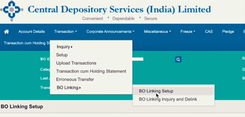
- Go to: Transaction → BO Linking → BO Linking Setup
-
Click: “Add New”
-
Enter Kotak’s Target BO ID (16-digit): - IN300214 + your 8-digit Kotak ID - Example: IN30021412345678
-
Click: Submit
Verification:
- CDSL sends an authentication email
- Click the link in the email
- Verify your PAN and demat details
- Generate and enter OTP
- Kotak’s account is now linked
Make it Trusted:
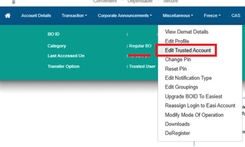
- Go to: Miscellaneous → Edit Trusted Account
- Select: Your Kotak BO ID
- Click: Mark as Trusted
- Broker verifies within 24 hours
- Status changes to: “Authenticated by DP”
Step 6: Initiate Transfer on Easiest
In Easiest Portal:
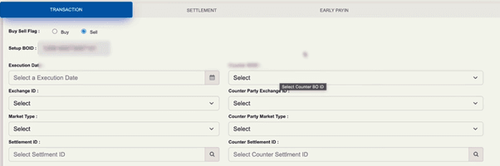
- Go to: Transaction → Setup → Bulk Setup
-
Click: “Create New”
-
Fill in: - Execution Date: Today or future date
- Counter BO ID: Your Kotak BO ID (from dropdown)
- Entity ID: NA (leave blank)
- Add ISINs: Click “+” and select securities
- Quantity: Shares to transfer
- Reason for Transfer: Select appropriate reason from dropdown - Consideration: 0 (no money involved)
- Click: Submit
Step 7: Digitally Sign the Instruction
The system will ask you to:
- Insert your DSC USB token into computer
- Enter your token PIN
- The system will digitally sign your instruction
- You may also receive an OTP for additional confirmation
- Click: Verify → Commit
Once committed: - Instruction is lodged in CDSL’s system - Status shows as “Pending” - CDSL begins processing
Step 8: Track and Monitor
In Easiest:
- Go to: Transactions → Inquiry → Status
- View your transfer instruction status
- CDSL will process and execute
- You’ll receive email confirmation when complete
✓Transfer Complete! The shares have moved from your old account to Kotak
The content in this blog is intended purely for educational purposes. Any securities or mutual funds referenced are illustrative in nature and do not constitute a recommendation or endorsement by Kotak Neo. Investors are encouraged to assess their own financial situation and seek professional advice before making any investment decisions. For compliance T&C and disclaimers, Visit https://www.kotakneo.com/disclaimer/
0 people liked this article.

Kotak Neo (Kotak Neo) is India's venerable stockbroking company with a rich legacy. It offers comprehensive investment services across asset classes, prioritising a technology-first approach for a seamless experience. Trusted by 5 million+ customers, it guides you toward financial success with ease of investment and speed of trade.
Note: The opinions expressed in this blog are personal viewpoints and should not be construed as recommendations.