Updates to help you make informed trading decisions.
Strategy Bot's New Leg Adjustments
1. What's New with Strategy Bot
We've been listening to your feedback, and today we're excited to introduce the latest updates to the Strategy Bot — designed to give you greater control, flexibility, and clarity when managing your trading strategies.
This update brings two major improvements: a cleaner interface and powerful new leg-level controls that let you actively manage your positions mid-strategy with precision.
Highlights of What's New
-
Cleaner UI A redesigned, clutter-free interface for setting your Take Profit (TP) and Stop-Loss (SL). The new layout separates TP and SL into clearly defined input sections, making it easier to configure your exit criteria at a glance.
-
Enhanced Leg Adjustments Square off an existing leg instantly at market price.
Add a new leg to your active, live strategy without closing it.
Set independent TP/SL at the individual Leg level for granular control.
2. Walkthrough: Creating a New Strategy with Improved Settings
Let's walk through the full strategy creation flow to see how the new interface works in practice.
Step 1: Navigate and Select
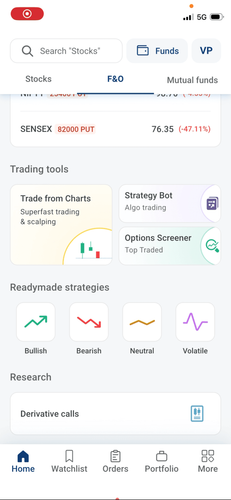
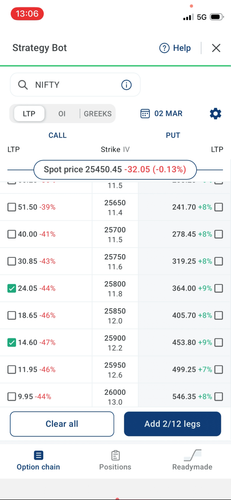
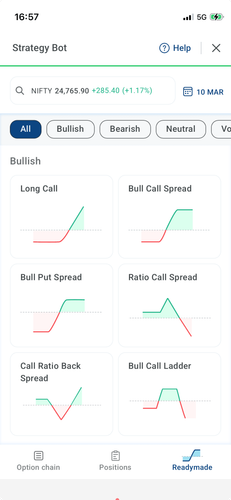
Open the Strategy Bot. You can either build your customised strategy using the option chain, or pick from one of our ready-made strategies to get started quickly.
Step 2: Define Your Legs
After selecting your preferred strategy or option legs, you will move on to configuring the entry and exit criteria. Select the legs you want to include in your strategy.
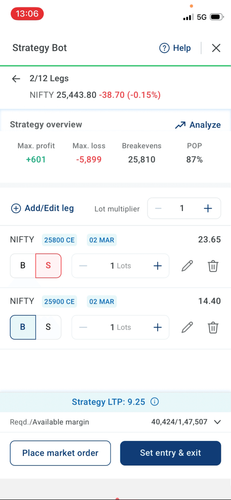
Step 3: Set Entry Criteria
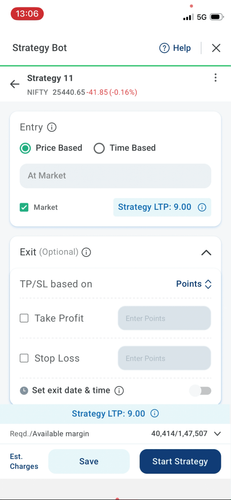
The Entry Criteria process remains unchanged — familiar and straightforward. For this example, we will use Price Based at Market, which executes your entry at the market price.
Step 4: New Exit Criteria UI
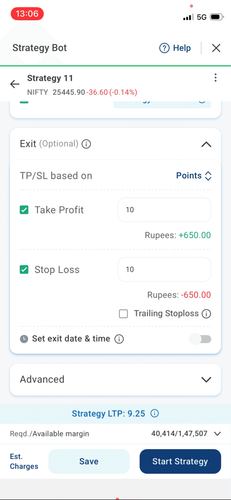
This is where you will notice a visual change. The Exit Criteria section has been redesigned with a cleaner, more organised layout:
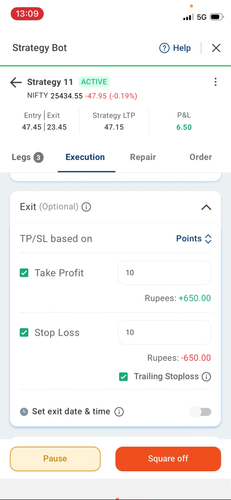
• Take Profit (TP) and Stop-Loss (SL) now have clearly separated input sections.
• You can easily toggle between entering values in Points or Rupees, depending on your preference.
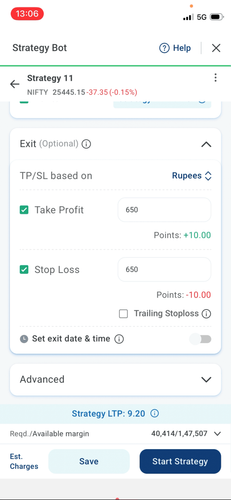
Step 5: Launch Your Strategy
Once you've entered your desired TP and SL values, hit Launch. Your strategy goes live immediately.
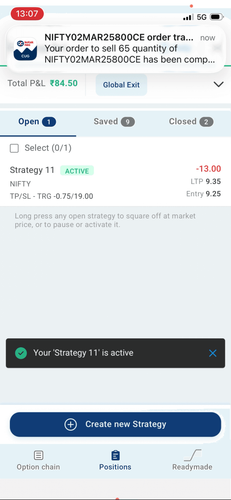
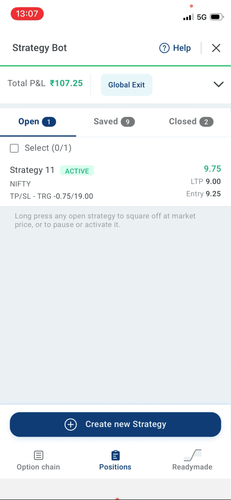
Step 6: Monitor Under Open Positions
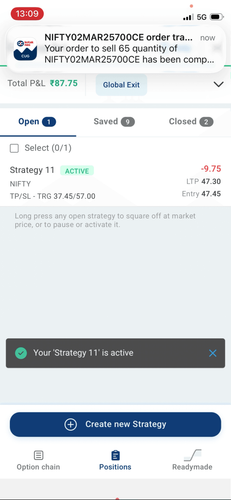
Your active strategy is instantly reflected under the Open Positions section. You will also see the calculated TP/SL Trigger price, computed based on the Strategy entry price — giving you a real-time view of where your strategy stands.
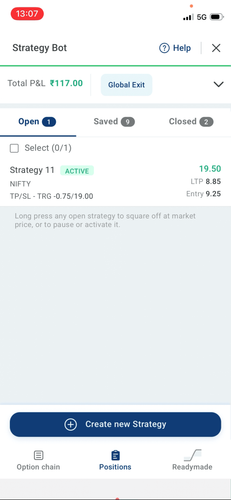
? Pro Tip: The TP/SL Trigger price displayed under Open Positions is dynamically calculated from your strategy's entry price. Keep an eye on this value as your strategy evolves.
3. Diving Deep: Managing Strategies with Leg Adjustments
The real power of this update lies in the new Leg Adjustment capabilities. Once your strategy is live, you can actively manage individual legs. Here's how each feature works.
A. How to Square Off an Existing Leg
Sometimes market conditions change, and you need to exit a specific leg of your strategy without unwinding the entire strategy. The Square Off feature makes this simple.
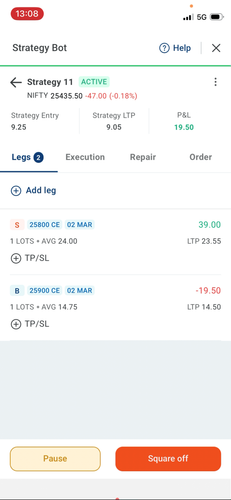
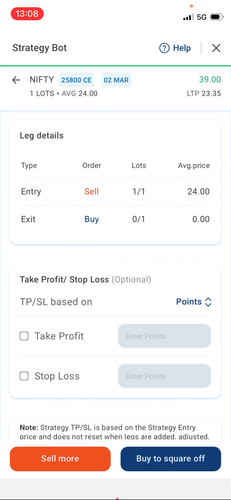
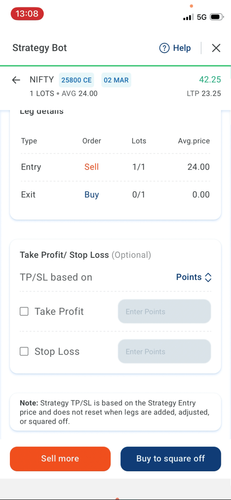
• Step 1 — Locate: Under the Legs section of your active strategy, find the leg you want to exit and click on it to expand its details.
• Step 2 — Action:
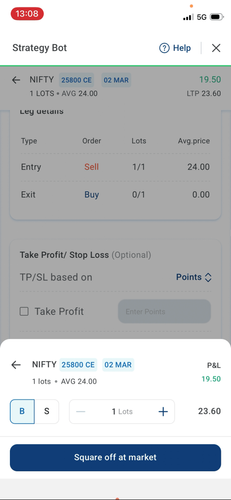
Click the Square-off button.
• Step 3 — Result:
The selected leg is squared off immediately at market price. The rest of your strategy continues running as normal.
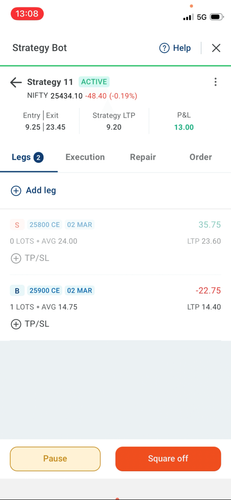
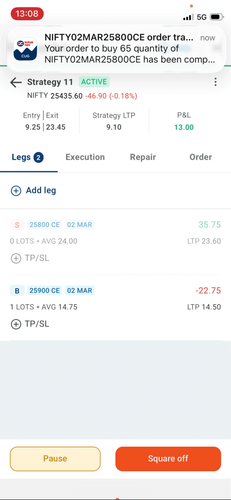
⚡ Important: Squaring off a leg executes at market price. Ensure market conditions are suitable before clicking the Square-off button.
B. How to Add a New Leg to an Active Strategy
Want to adapt your strategy to new opportunities without closing your strategy? You can now add new legs to a running strategy on the go.
• Step 1 — Initiate:
Under the Legs section, click the "Add Leg" button. Important: Your strategy will temporarily enter a paused state while you configure the new leg — this is by design to ensure accurate recalculation.
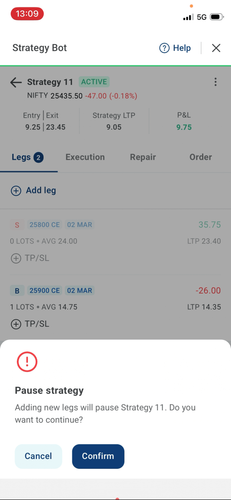
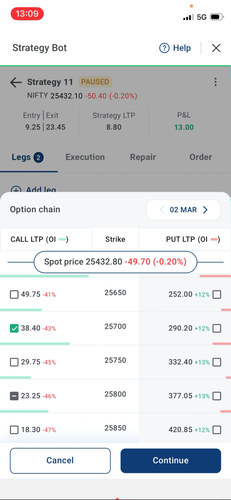
• Step 2 — Select & Add:
Choose the desired leg(s) — you can add a single leg or multiple legs at once. Confirm to add them to your active strategy at market price.
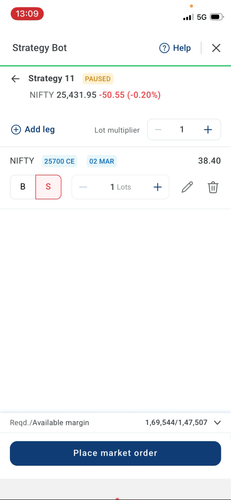
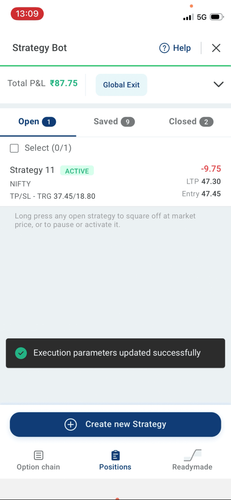
• Step 3 — Recalculation:
Once the new leg is added, the strategy entry price is automatically recomputed to account for the newly included position.
• Step 4 — Exit Criteria Update:
Your overall exit criteria (TP/SL) remain unchanged — the same values you originally set. However, they are now recalculated against the updated strategy entry price. The new TP/SL Trigger price will be reflected in the Open Positions section.
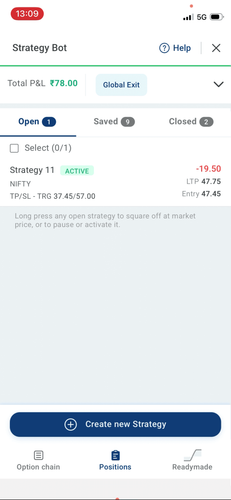
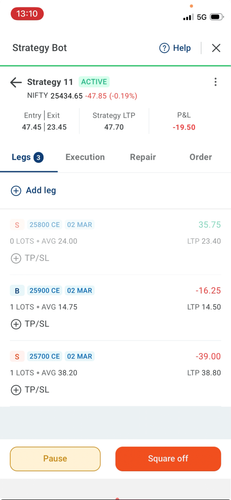
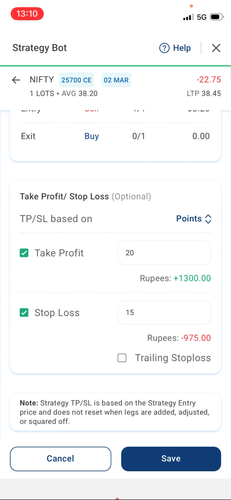
? Note: Adding a leg pauses your strategy momentarily. This ensures the entry price and exit triggers are recalculated accurately before the strategy resumes. Your original TP/SL settings are preserved — only the trigger price adjusts.
C. How to Add Leg-Level TP/SL
Leg-Level TP/SL — lets you set independent exit criteria for individual legs within your strategy.
• Step 1 — Select the Leg:
Under the Legs section of your active strategy, click on the specific leg where you want to apply an independent exit.
• Step 2 — Set Exit Criteria:
You'll now see dedicated TP and SL input fields at the leg level. Set your desired Take Profit and Stop-Loss values independently for this single leg — completely separate from the overall strategy-level TP/SL.
? Power Feature: Leg-Level TP/SL operates independently from strategy-level TP/SL. This means a leg can be exited based on its own criteria without triggering the entire strategy's exit. Use this for fine-tuned, asymmetric risk management across your positions.
4. Conclusion
The latest Strategy Bot updates represent a meaningful step forward in how you can manage your trading strategies. By combining a cleaner interface with powerful new leg-level controls, you now have the tools to:
• React to changing market conditions without closing your entire strategy.
• Manage individual legs independently with dedicated TP/SL controls.
• Adapt and expand your strategy on the fly by adding new legs mid-run.
• Monitor all of this in real time under the Open Positions section.
Whether you're a seasoned options trader or just getting started with multi-leg strategies, these enhancements give you the precision and flexibility to manage your positions the way the market demands.
? Log in today and experience the upgraded Strategy Bot.
Greater control. More flexibility. Smarter trading.
Read More : FAQs of Strategy Bot